


Search takes plain words and also sentences like "cheap desk lamps under $30". Filter opens a panel with price, condition, deals and quality, plus filters made for each category, like size and color for Fashion. Not Interested hides a row and tells Sellwild to show you less like it.
Search by keyword
- Type what you want
Click Search Sellwild at the top of the marketplace. Your Recent Searches drop down under it, and clicking one runs it again.
- Press Enter
Results open under "What we found for:" and your search. An empty box takes you back to the home page.


A search of three words or more that reads like a question, such as "show me leather jackets under $100", is turned into filters for you. That one sets a top price of $100. Filters you set yourself win over the ones it guesses.
Browse by category
The bar under the search box starts with For You and All, then lists the categories. An arrow at the right end scrolls it when more are hidden. On a phone, the menu button at its left opens the full list.
Filter the results
- Open Filter
Press Filter beside the search box. The Filters panel slides in from the left.
- Pick a category
On a search, the panel starts with Category. Pick one to get the filters made for it.
- Set a price and condition
Type a Min, a Max, or both. Under Condition, tap one or more, from Brand New to Quite Used. Any means all of them.
- Tap the choices you want
Below that come the filters for what you're looking at, like Gender, Age and Size. Each choice shows how many items have it, and the counts change as you pick.
- Apply
Press Apply Filters. With no search words in the box, the button tells you how many items you'll see, such as Show 1,163 results.


Tap a choice again to take it off. A long list shows its top 12, then Show all. Once open, a long list like brands has a box to find one by name. To close the panel without changing anything, press the X, press Esc, or tap the page beside it.
Filters for each category
Each category has its own filters, and the panel's title names it. On the Fashion page it reads Fashion Filters and starts with Type, then Gender, Age, Size and Color. Other categories get their own, for example:
| Category | Some of its filters |
|---|---|
| Vehicles | Make, Model, Body Style, Fuel, Drivetrain |
| Pets | Species, Age, Dog Size, Sex, Breed, Good With |
| Music | Genre, Decade |
| Books | Genre, Subject, Edition |
| Sports | League, Team, Brand, Size |
A filter shows up only when items in that category have it. A category with none shows just price, condition and the Show row.


On a category page, Apply keeps you on that page with the filters on. On a listing, Filter opens the filters for that listing's category, and Apply takes you to that category's page with them on.
Deals Only and Quality Only
At the bottom of the panel, under Show:
| Choice | Keeps |
|---|---|
| Deals Only | Items priced well under what they sell for elsewhere. See The Sellwild Deal Score. |
| Quality Only | About the top 5% of items, judged by brand, materials and condition. |
| Featured Only | Items Sellwild has picked to feature. |
Sold items are hidden. Pets has no Show row, since adoptions have no market price or brand to judge.
The filter count
A number on the button tells you how many filters are on. With more than one, it reads Filters.


Press Clear at the bottom of the panel to turn them all off. Your filters are saved with the search under Recent Searches, so clicking it brings them back.
Read a listing card
Each card has a photo with the heart for your Wishlist and the condition on it. Under the photo are the title and price. A crossed-out price means the seller has a sale on. Verified marks a seller who can take payment on Sellwild, so their items can show Buy Now.


Hide a row with Not Interested
Rows on the home page, on category pages and on For You carry a Not Interested button beside their title. Pages open as a grid of cards, which has no rows. To see rows, press Showcase view, the second of the two small buttons beside the page heading. Your choice is remembered in this browser.
- Press Not Interested
A menu opens with the row's name.
- Pick how much
Show less means fewer rows like it. Show none means stop showing it at all.
- Undo if you change your mind
The row empties and says "Showing you less like this" or "You won't see this again", with an Undo button.


The row stays hidden in this browser the next time you visit. Your choice is also sent to Sellwild, and it changes what we pick for you:
- Show less lowers that category or tag. On the home page, the row moves to the bottom.
- Show none leaves it out.
If you are signed in when you choose, this follows you to every browser and the phone app. Undo takes it back there too.
Next Steps



More Buyer Guides
Creating an Account
Sign in or sign up with a 6-digit code, or with Google, Apple or Facebook. No password.
Sign-in Help
What to do when a sign-in code does not arrive, is refused, or a sign-in link has expired.
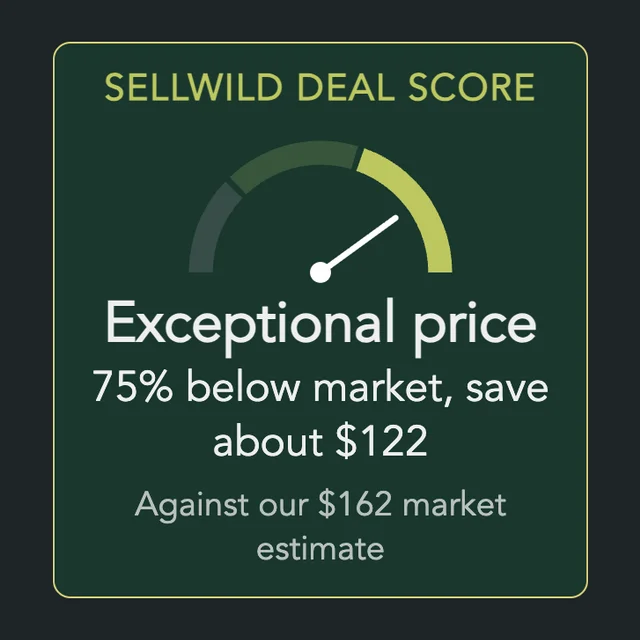
The Sellwild Deal Score
What the Deal Score on a listing means, and how we decide a price is a deal.

Guest Checkout
Buy without signing in first, and find your order afterwards.

Chatting with Sellers
Message a seller from a listing or an order, and what stops a message from sending.

Tracking Your Order
What each order status means, where the tracking number is, and how to confirm you got it.

My Purchases
Find an order, filter it by status, and read what you paid.

Cancelling an Order
Cancel an order before the seller accepts it, and what happens to the hold on your card.

Order Disputes
Open a dispute when an order goes wrong, and what happens after you do.

Manage Chats
Find a conversation, see what is new, reply, and copy or delete messages.
Blocking and Reporting
Stop someone from messaging you, and report them to the Sellwild team.
