


Press Listings on a discount's card to open a list of everything you sell. A tick adds or removes one listing at once, with no save step. Add to all listings covers the whole shop, or only the results of a search, and shows what will change before it does.
Open the list
On the Discounts page, press Listings on a card. A new discount's card also has an Add listings button. A panel opens on the right with every listing you have, newest first.


A tick means the listing has this discount.
Add or remove one listing
Tick a row to add the discount, untick it to take it off. The change saves the moment you tick.
Some rows cannot take it:
- In a coupon's list, On another discount under the title means another automatic discount is on it, running or paused. That is an automatic coupon or a timed discount. The tick is refused with "That listing is already on another discount", and the listing keeps the one it has. A coupon buyers must type a code for does not count.
- In a timed discount's list, On another discount means another running timed discount has it. The tick is refused.
- In a timed discount's list, Has an automatic coupon means the tick works, but the timed discount will not change that price until the coupon is deleted.
- Sold and archived listings cannot take a discount, and they keep one they already have.
Add to many at once
- Narrow it down, or not
Type in Search your listings… or pick a Status. The buttons change to Add to all results and Remove from all results. With no search, they cover your whole shop.
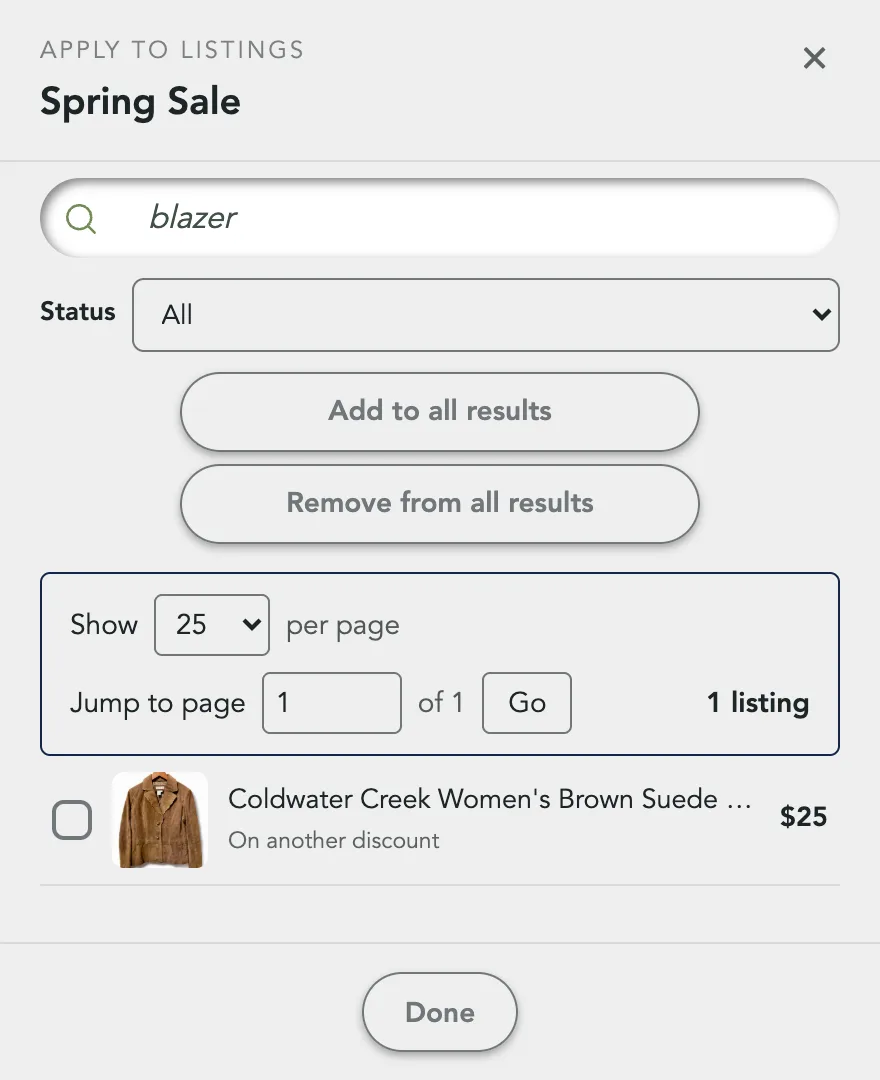
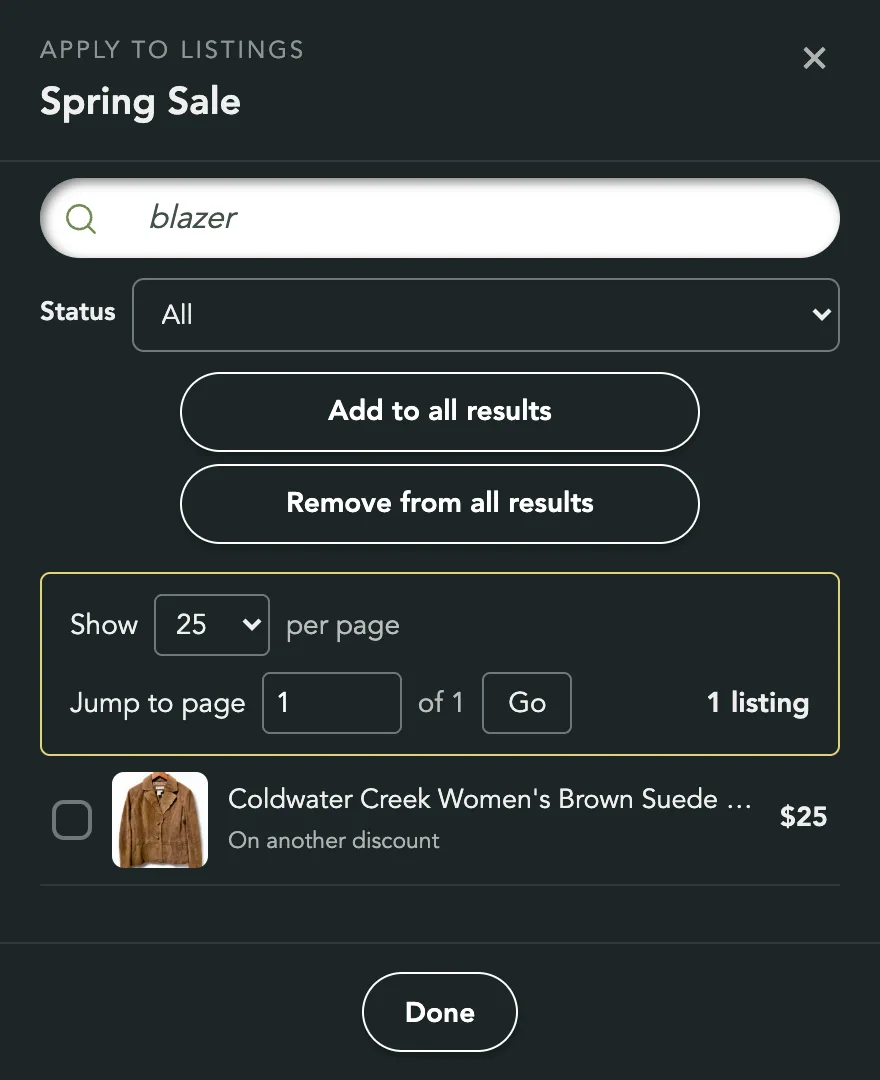
- Press Add to all listings
Or Add to all results. Nothing changes yet. A sheet counts what would happen: how many listings get the discount, how many have it already, and how many are skipped because they are on another discount or sold.
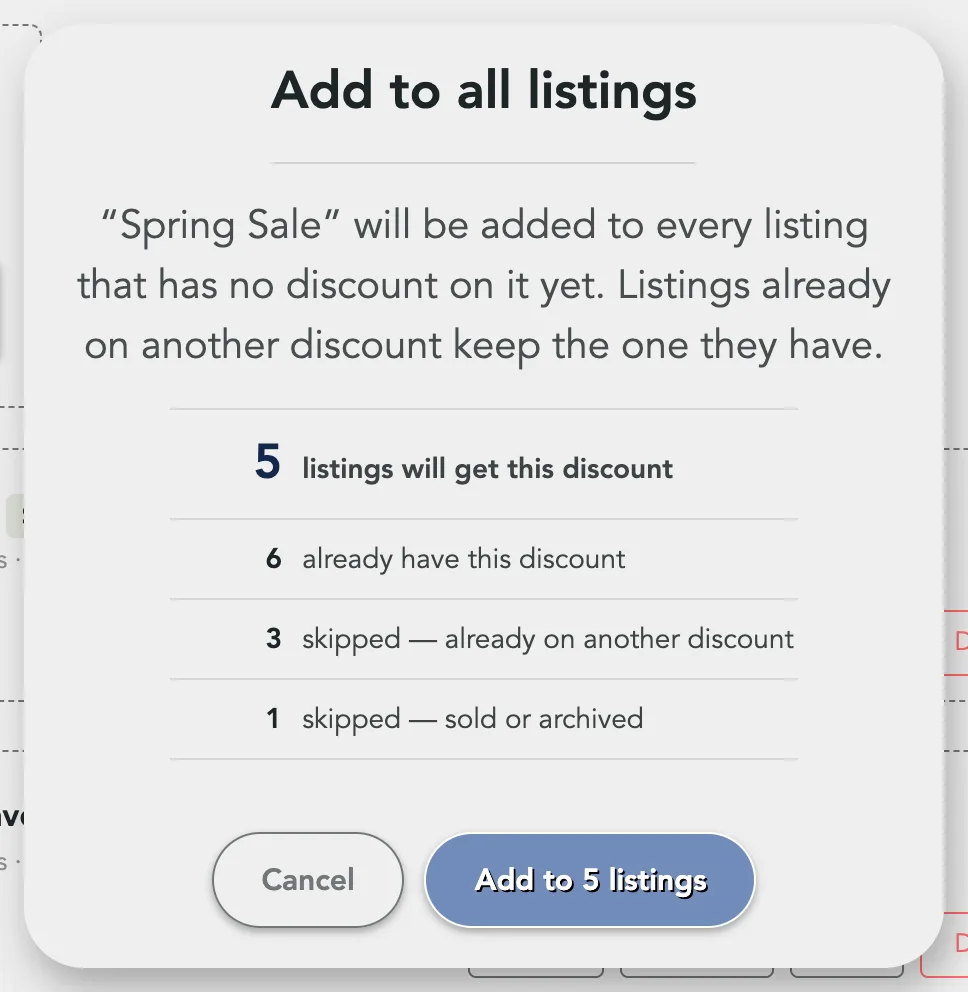
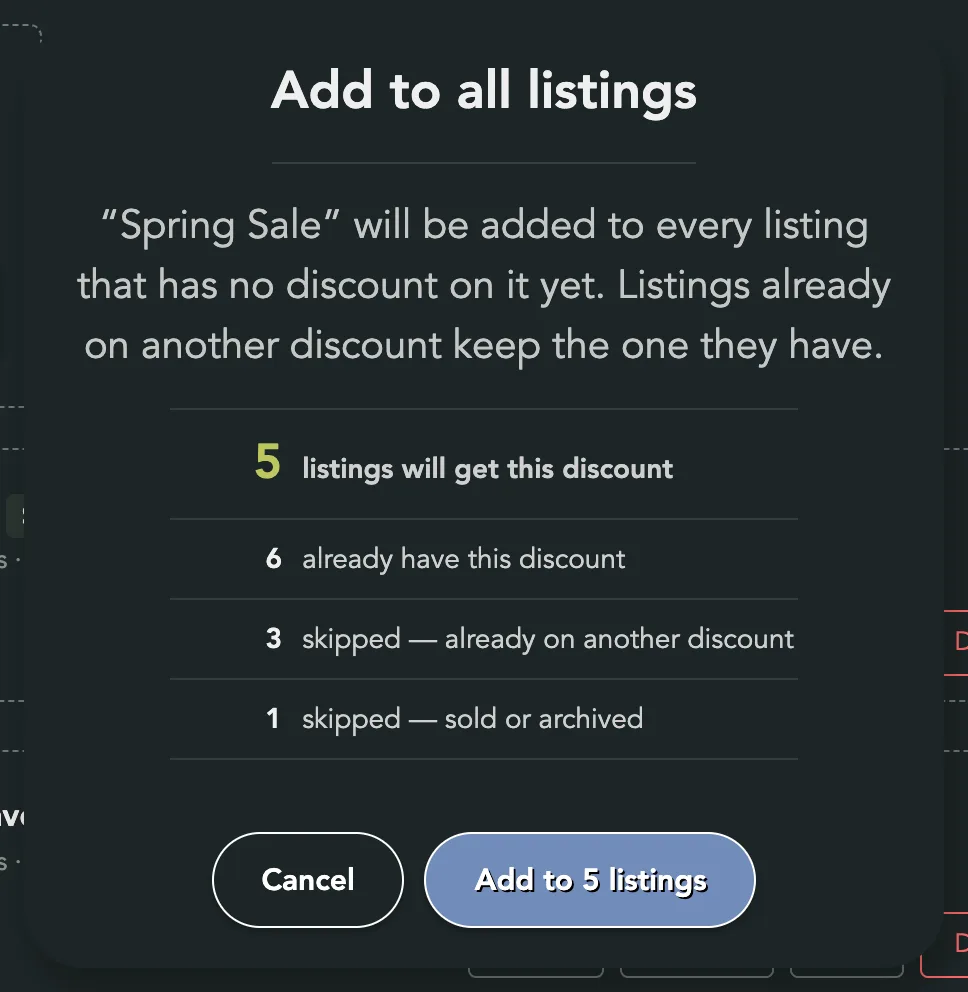
- Confirm
Press Add to N listings. A message says how many changed. Listing pages can take a short while to show the new price.


Remove from all listings works the same way. It leaves sold and archived listings alone, and the discount itself stays so you can add it again later. For a timed discount, the sheet also counts the prices going back to full.
A big run can stop part way with "Run it again to finish." Running it again finishes the job and does not add anything twice.
Close the panel
Press Done, the ×, or anywhere outside the panel. The card's listing count updates.
Next Steps

Manage Discounts
The Discounts page holds your coupons, BOGO promotions and timed discounts. Pick the right one and keep track of it.

Coupons & Promo Codes
Make a coupon that takes money off by itself or with a code, set its limits and dates, and see what buyers see.

BOGO Coupons
Run a Buy One, Get One promotion that sends each buyer a personal reward code for their next purchase from you.

Timed Discounts
Lower a listing's price by a set amount on a schedule, down to a floor you choose.
More Seller Guides

Selling Your First Item
Post a listing from start to finish, one form, top to bottom.

Taking Great Photos
Shoot, upload, order and fix up to 20 photos per listing.

Pricing Your Item
Set a price, let AI suggest one, and see what you keep after the fee.

Packaging and Weight
Pick the box a listing ships in, give its weight, and set where it ships from.

Ship an Order
Approve a sale, print the label or use your own carrier, and mark it shipped.

Buy a Shipping Label
Get a USPS label for an order that was paid without one.

Getting Paid
Set up payouts with Stripe, clear anything it flags, and know when the money moves.

Fees and What You Earn
What the buyer pays, what Sellwild keeps, and what reaches your Stripe balance.

Manage Sales
Find an order, read its status and what you earn, and handle cancellations and disputes.

Manage Wallet
Check your Stripe balance, read your earnings, and manage the cards you pay with.

Manage Listings
Find any listing you have posted, read its status, relist or archive it, and change the packaging on many at once.

Edit, Mark Sold or Delete
Change a live listing, close it out when it sells elsewhere, or take it down.

Shipping Settings
Choose your label size, your default packaging and the address you ship from.

Manage Addresses
Add your addresses, choose the default, and remove the ones you no longer use.

Manage Profile
Change your photo, name and email, sign out, or close your account.
Storefront Username
Pick the name in your store's web address. You can change it once.

Notification Preferences
Choose which emails Sellwild sends you, set when digests arrive, and unsubscribe from one email.
