


A listing holds up to 20 photos, and the first one is the picture buyers see in search. Drag to reorder. Tap the pencil on a photo to crop, rotate, change the background or delete it.
What buyers look for
- The whole item in one shot, then the front, back and sides
- Close-ups of labels, sizes, serial numbers and any damage
- Daylight or a bright room, on a plain background
- True colors, with no filters
Do this, not that
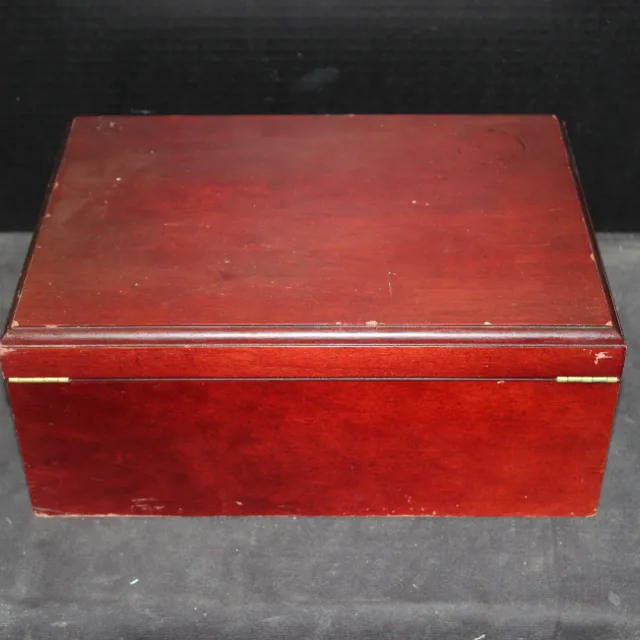
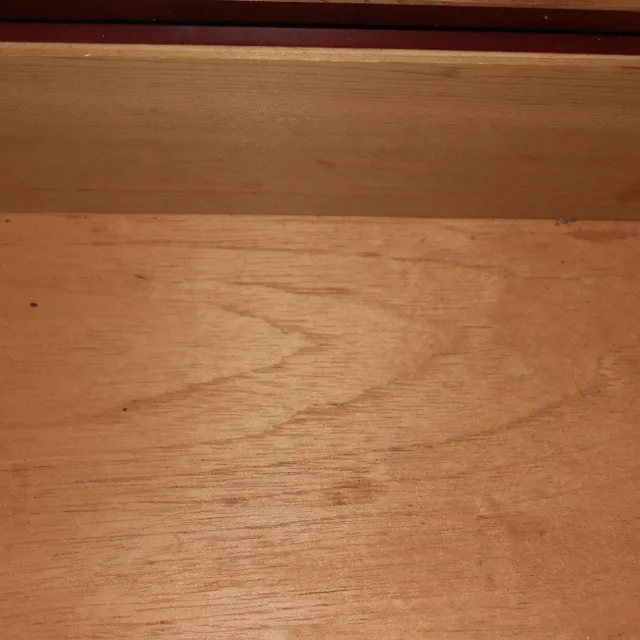
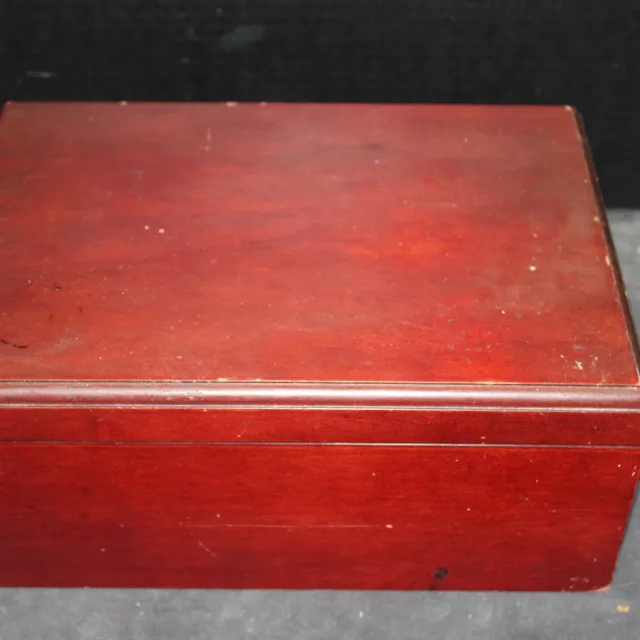
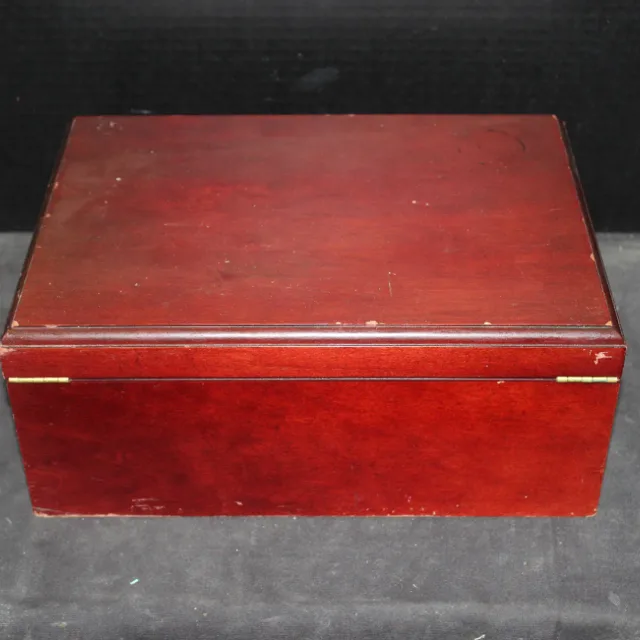
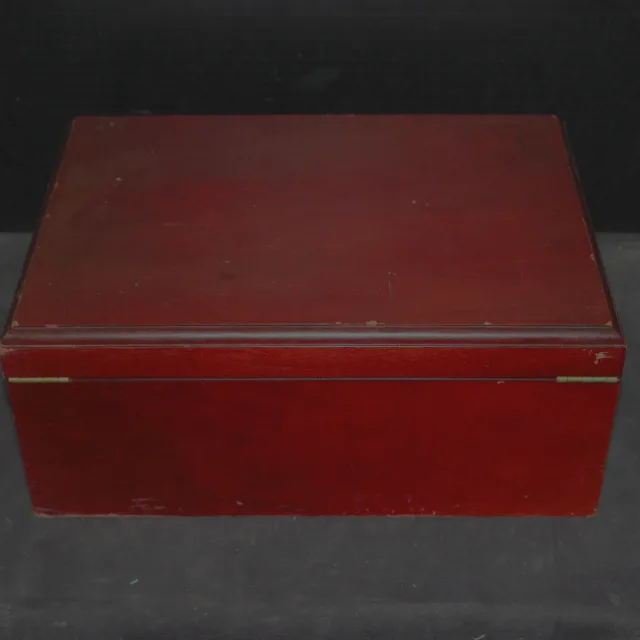
Add photos on a computer
- Open the Sell page
Press Sell in the header.
- Pick the files
Press Select Photos and choose one or more pictures.
- Or drag them in
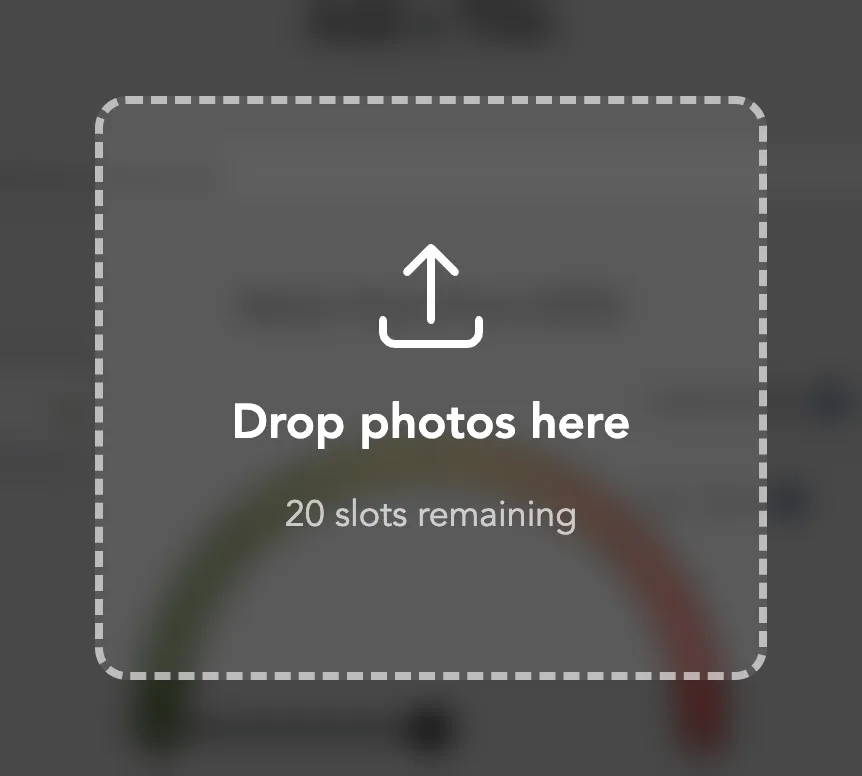
Drag files from your desktop anywhere onto the page. Drop photos here shows how many slots are left.


iPhone HEIC photos work. They are turned into JPEGs as they load. Past 20, the extra files are left out, and a note says how many made it in, such as "Added 2 of 5 photos."
Take photos on your phone
- Open the camera
On a phone, the photo box shows a round camera button instead of Select Photos. Tap it and allow camera access.
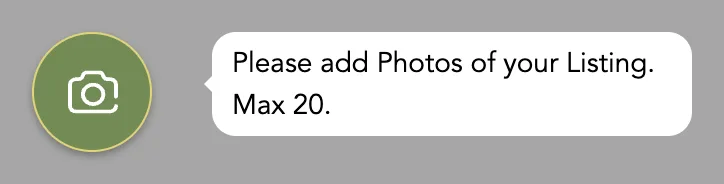

- Shoot
Tap the white shutter button once per photo. Each shot drops into the strip above it.
- Add from your gallery
The small photos button beside the shutter opens your gallery.
- Finish
Tap Done to go back to the form.


If the camera is blocked, the screen says "Please allow access to the camera so we can start your listing". Tap Allow Access to ask again, or Maybe Later to use the gallery button. If your phone refuses, turn on camera access for Sellwild in your phone's settings.
Put the best photo first
Press and hold a photo, then drag it left or right. Put your clearest whole-item shot in the first spot.


Crop, rotate or change the background
- Open the editor
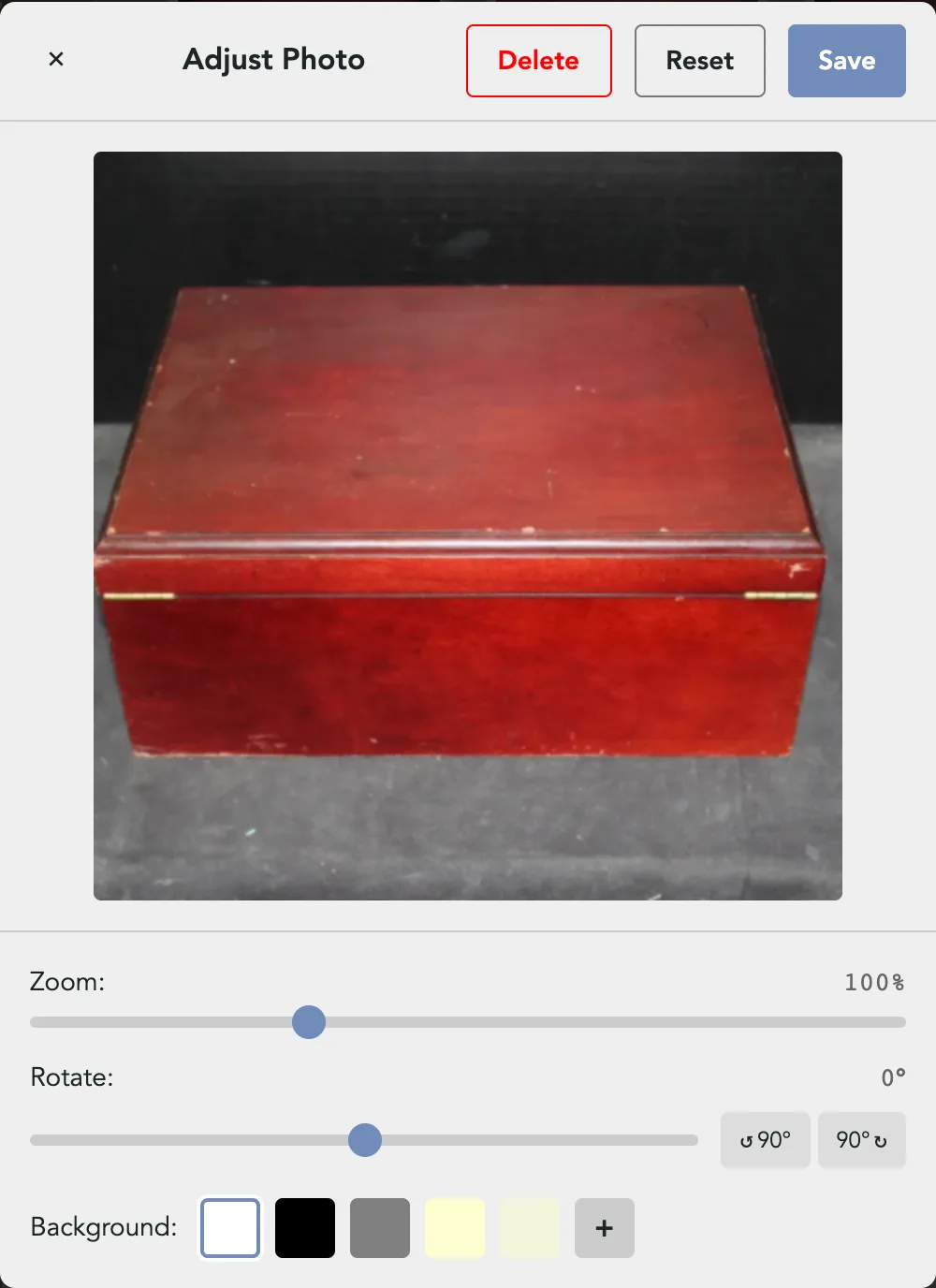
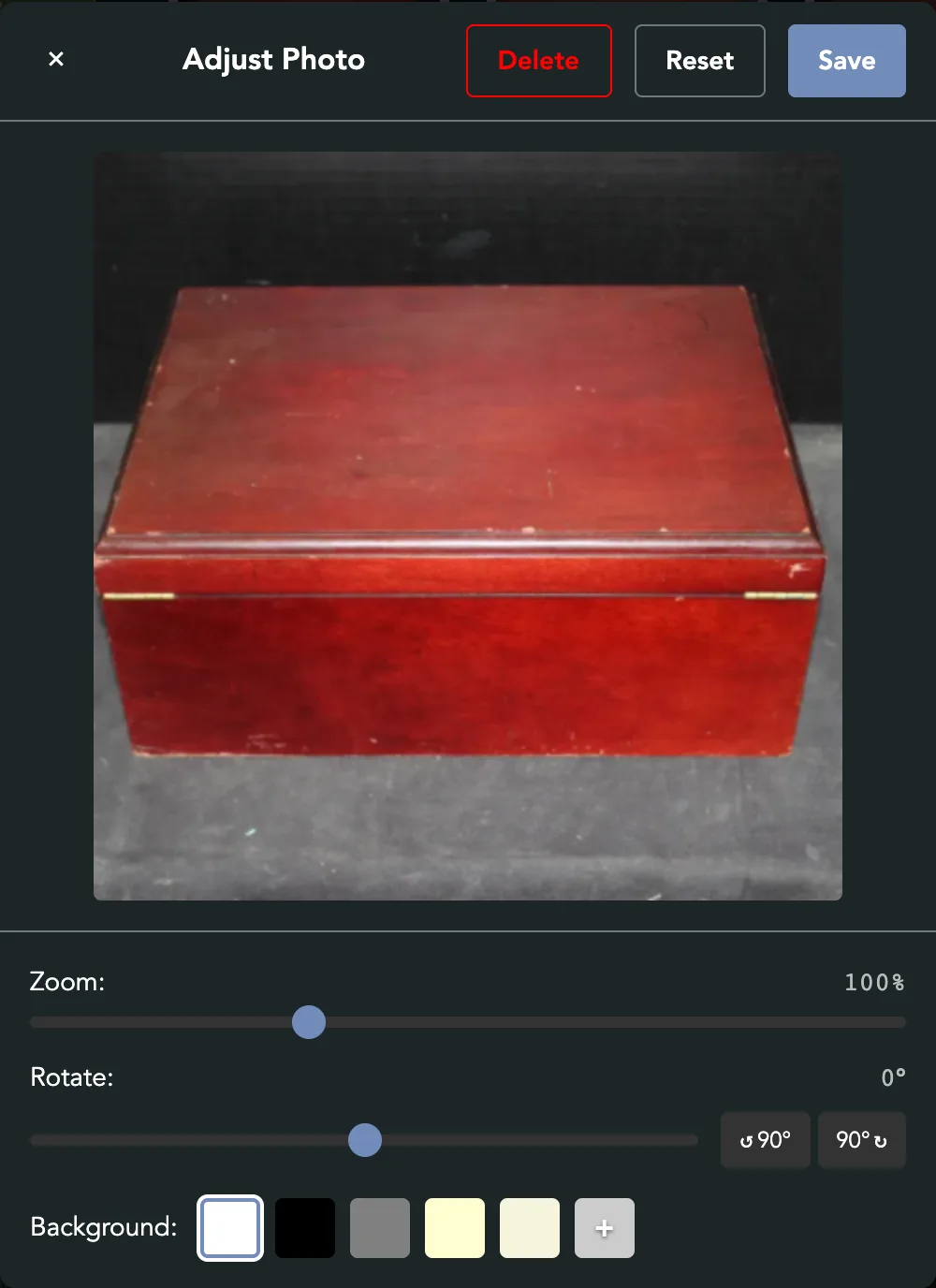
Tap the pencil on a photo. Adjust Photo opens.
- Zoom and move
Drag the Zoom slider, scroll, or pinch on a phone. Drag the picture to move it in the frame.
- Rotate
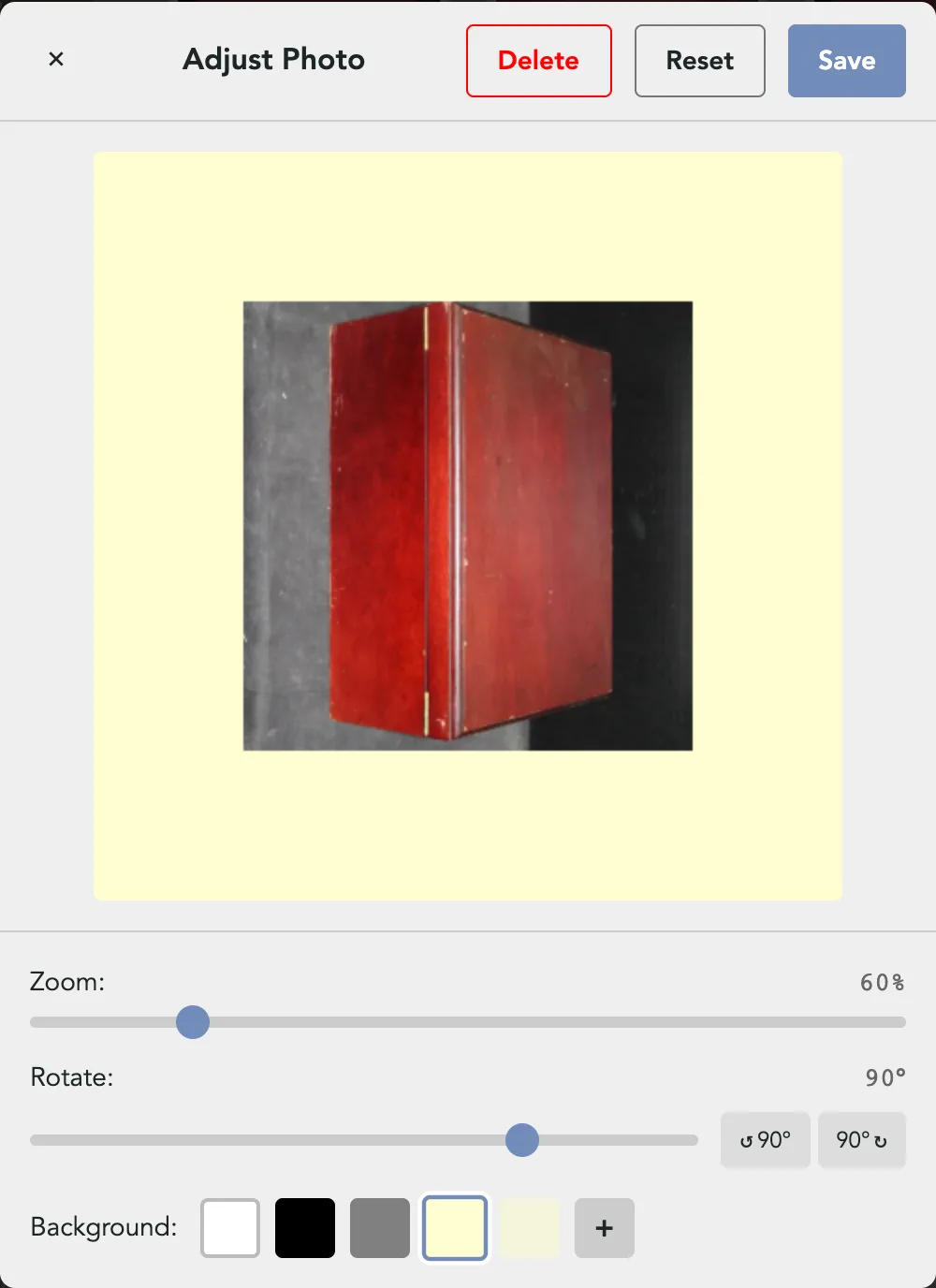
Drag the Rotate slider, or press ↺ 90° or 90° ↻ to turn it a quarter.
- Pick a background
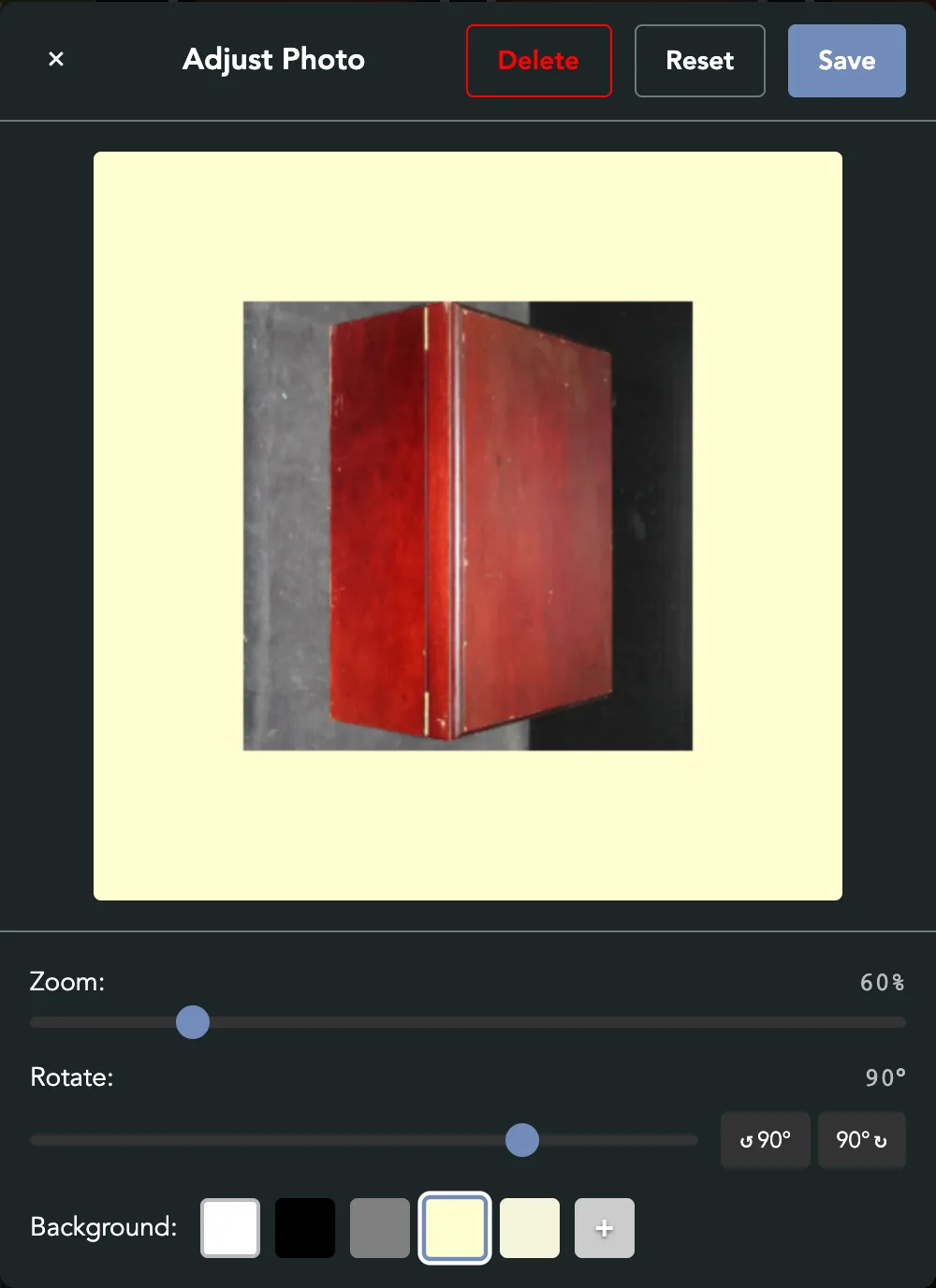
Background fills the space the photo does not cover. Pick one of the five swatches (white, black, gray, cream or beige), or + for any color.
- Save
Press Save. Reset puts the photo back the way it was. The × closes the editor without saving.


Remove a photo
Open the editor on it and press Delete. Delete Photo? shows the photo and asks first. Press Delete under it to remove the photo, or Cancel to go back to the editor.
Change photos on a live listing
Open the listing from Manage Listings and press Edit. The photo strip works the same way. Press Save at the bottom to keep the change.


Next Steps


More Seller Guides

Packaging and Weight
Pick the box a listing ships in, give its weight, and set where it ships from.
Ship an Order
Approve a sale, print the label or use your own carrier, and mark it shipped.
Buy a Shipping Label
Get a USPS label for an order that was paid without one.

Getting Paid
Set up payouts with Stripe, clear anything it flags, and know when the money moves.

Fees and What You Earn
What the buyer pays, what Sellwild keeps, and what reaches your Stripe balance.

Manage Sales
Find an order, read its status and what you earn, and handle cancellations and disputes.

Manage Wallet
Check your Stripe balance, read your earnings, and manage the cards you pay with.

Manage Listings
Find any listing you have posted, read its status, relist or archive it, and change the packaging on many at once.

Manage Discounts
The Discounts page holds your coupons, BOGO promotions and timed discounts. Pick the right one and keep track of it.
Choose Listings for a Discount
Add a coupon, BOGO promotion or timed discount to one listing, a search, or your whole shop.

Coupons & Promo Codes
Make a coupon that takes money off by itself or with a code, set its limits and dates, and see what buyers see.

Timed Discounts
Lower a listing's price by a set amount on a schedule, down to a floor you choose.

BOGO Coupons
Run a Buy One, Get One promotion that sends each buyer a personal reward code for their next purchase from you.
Shipping Settings
Choose your label size, your default packaging and the address you ship from.

Manage Addresses
Add your addresses, choose the default, and remove the ones you no longer use.

Manage Profile
Change your photo, name and email, sign out, or close your account.
Storefront Username
Pick the name in your store's web address. You can change it once.

Notification Preferences
Choose which emails Sellwild sends you, set when digests arrive, and unsubscribe from one email.
